

AI Images for Presentation Slides: One Idea per Picture, the Words on the Slide
By The Fellowi Team · · 6 min read
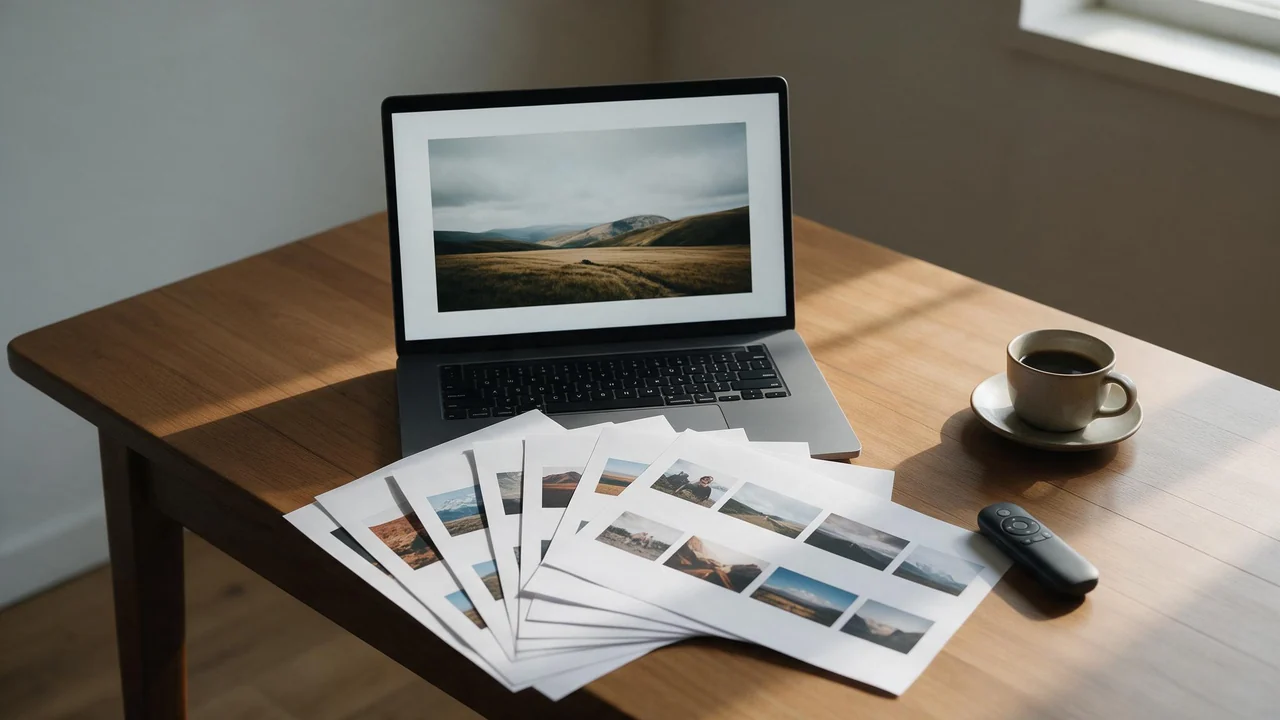
It is the night before the talk. The content is done, the argument holds, and every slide is still white with black bullet points, or worse, decorated with the same smiling stock photo of people around a laptop that the audience has seen in a hundred decks. An image generator can fix that in an evening, if you treat it as an illustrator and not as a slide designer. Below is one ten-slide deck taken slide type by slide type, with what goes wrong and the fix.
Before any prompt: the shape
A standard widescreen slide is 16:9, and Fellowi Images offers 16:9 in its aspect ratio picker. Pick it before you write anything. A square picture stretched or cropped to fill a slide loses its subject at the edges, and a generator composes differently for a wide frame: it spreads the scene out and leaves air at the sides, which is exactly where your words will go. For a picture that sits beside text on half the slide, a taller shape such as 4:5 or 1:1 suits better; which shape suits which place has the full list.
Slide 1, the title: room for the words
What goes wrong: a busy, beautiful picture, and then no place to put the title that is readable. The fix:ask for the empty space in the prompt, and say where. “Wide view of a quiet harbour at dawn, calm water, the left half mostly open sky in soft pale blue, no text”. The title goes into that sky in your slide tool. Never put the title itself in the prompt: letters inside a generated image come out misspelled or warped often enough that the slide tool is the only safe place for words, and that includes your company name.
Slides 2, 5 and 8, the section breaks: one style line
What goes wrong: three section dividers that look as if three different people made them, one watercolour, one photograph, one glossy 3D render. The fix:write one style line and paste it unchanged into every prompt for the deck, for example “flat editorial illustration, muted navy and sand palette, soft grain, simple shapes, large empty area on the left, no text”, and change only the subject. Then attach the first picture you liked as a reference image, so the palette and the brushwork carry over to the rest. The cheapest image family takes no references, so for this step pick one that does. A good style line is worth keeping for the next deck; keeping a prompt library shows how.
Slide 4, the idea: a metaphor, not a diagram
What goes wrong:you ask for a picture of the idea itself (“our three-step onboarding process”) and get a muddle of arrows and fake labels. The fix:give the picture one concrete thing to show, and let the slide’s headline carry the meaning. Three steps can be three stepping stones across a stream. A bottleneck can be a single narrow bridge with a queue of carts. Risk can be a climber on a ridge in fog. One idea per picture; if a slide has two ideas, it is two slides. If you are not sure the metaphor reads, describe it to a colleague in one sentence before you generate it. If the sentence needs a second clause, so will the picture.
Slide 6, the data: leave it to the slide tool
This is the one slide where the generator should stay out. A generated chart is a picture that looks like a chart: the bars, the axis and the numbers are invented, and an audience that spots one wrong figure stops trusting the rest of the talk. Build the chart from your real data in the slide tool. If the slide needs warmth, a small generated picture in one corner, in the deck’s style, does the job without pretending to be evidence.
Slide 10, the end: the picture people photograph
The last slide stays on screen during questions, often for longer than any other, and it is the one people take a photo of. Give it the strongest picture in the deck, in the same style line, with a clear empty area for your contact line. It can also echo the title slide: the same harbour, now in full daylight, is a quiet way to say the talk went somewhere.
Client decks, real people and the rules that apply
Our terms place no restriction on commercial use, so a picture you generate can go into a pitch for a client, and we take no share and need no credit; selling and using what you generate has the detail. Two limits come with it. There is no exclusivity, so someone else with a similar prompt can get a similar picture, and there is no copyright warranty, as who owns AI imagesexplains: use these pictures as illustrations, not as the client’s logo or brand mark. And a real person’s photo used as a reference needs that person’s permission, colleague or not.
What it cannot do
It cannot write your titles, your numbers or your client’s name into a picture reliably. It cannot draw a chart that means anything, a diagram with correct labels, or a screenshot of your product. It cannot reproduce a client’s logo faithfully, and it does not build slides: there is no slide export, no template and no layout, only pictures you place yourself. A generation that fails is refunded; a finished picture you do not like is not, so draft cheaply first, as drafting before you spend describes, and see the product pagefor what each render costs. Generated files are also deleted after a retention period, so download the pictures into the deck’s folder the same evening. The next deck will want that harbour again.
Questions this post answers
Which aspect ratio should I use for presentation images?
Use 16:9 for a full-bleed picture on a standard widescreen slide, and pick it before the first generation. For a picture that fills only half the slide, a taller shape such as 4:5 or 1:1 fits better than a cropped widescreen one.
Can an AI image generator make the charts for my slides?
No, not ones you can trust. A generated chart is a picture that looks like a chart, and its bars and numbers are invented. Build the chart from your data in the slide tool and use a generated image only around it.
Can I use AI images in a client presentation?
Yes. Our terms place no restriction on commercial use and take no share or credit. There is no exclusivity and no copyright warranty, so treat the pictures as illustrations, not as the client's brand assets.
Keep reading
Colour Palettes for Adult AI Character Art: Grading Words That Set the Mood
Six palette cards a colourist would recognise, the words that trigger each, and why skin tone is the colour to protect first. A painter's swatch board, not a prompt dump.
One Image, Twelve Attempts: What Each Edit Actually Did
I kept the whole trail for once. Twelve attempts, about eighty cents, and only seven of them taught me anything.
I Do Almost All of This on a Phone Now
I assumed the phone was the compromised version. It turns out the constraints of a small screen and a thumb keyboard change what you make, mostly for the better.